Everything you need to know about using Spatia — from your first canvas to
advanced workflows. Beginner and power-user friendly, from A to Z.
What is Spatia?
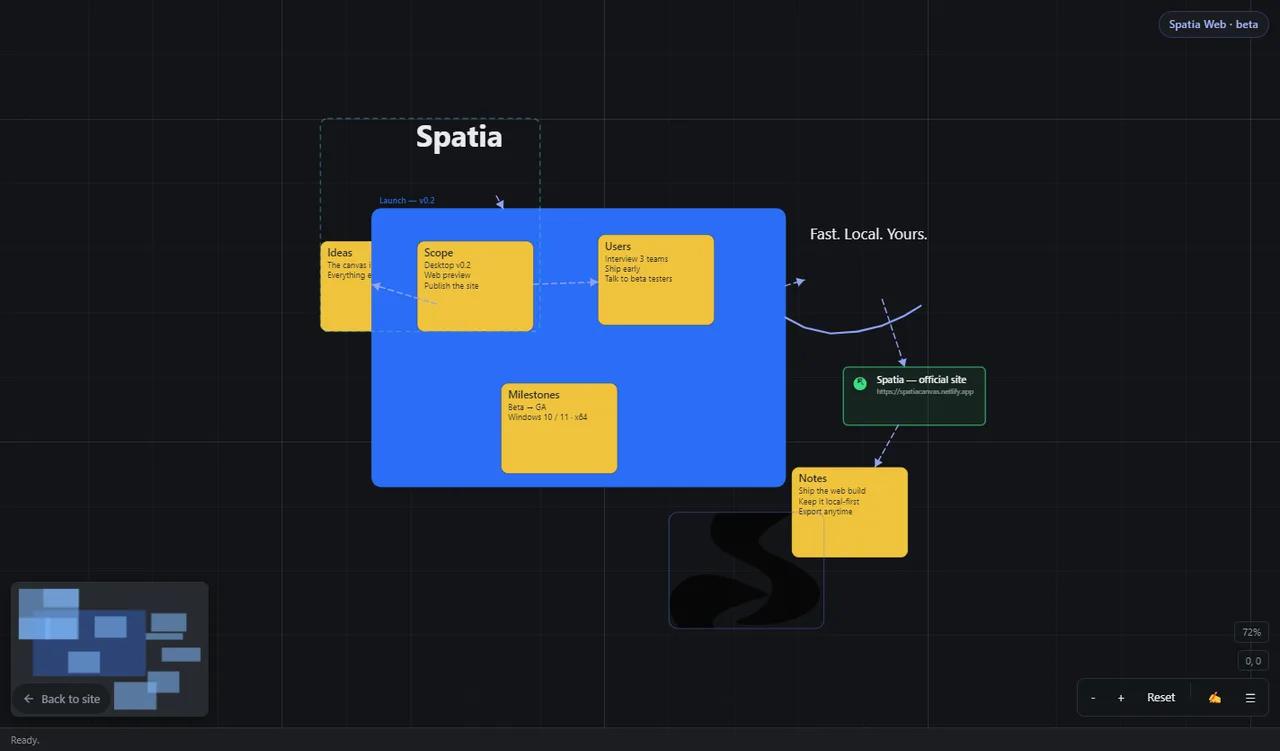
Spatia is a local-first visual infinite canvas for organizing ideas,
connecting concepts, and turning thoughts into something you can see. Instead of pages
and scrolling documents, you get one unbounded space where notes, text, shapes, frames,
files and links live side by side.
Local-first. Your projects are saved as real files on your machine (or in your browser on the Web app). No account, no cloud, no lock-in — everything works offline.
Infinite canvas. Arrange anything anywhere. Zoom from a bird's-eye view of your whole workspace down to a single note.
Everything connects. Lines and arrows follow objects as you move them, so diagrams stay tidy without manual redrawing.
Fast and lean. A dependency-free canvas engine renders smoothly even on very large workspaces.
One format. Projects use a versioned JSON format that keeps working when Spatia evolves.
Spatia is available as a Windows 10 / 11 (x64) desktop app and as a
Web app / installable PWA for any modern browser, including mobile devices.
Current version: 0.4.9.
Getting started
On Windows (desktop)
Download the installer from the Spatia website (Spatia-0.4.9-x64.msi).
Run the .msi and follow the setup wizard.
Launch Spatia. It opens a fresh blank canvas with the tools panel on the left.
In the browser (Web app)
Open the Spatia website and choose Try Web (or the Web link).
No sign-up needed. Your work is stored locally in your browser and stays private.
From the browser you can install Spatia as a PWA for an app-like, offline experience.
Your first canvas — 60 seconds
Add a note: in the left panel, add a Note (its text editor opens right away — start typing).
Add another note and connect the two: hold Ctrl, drag from the first note to the second, and release. An arrow connects them.
Zoom and pan: scroll the mouse wheel to zoom at the cursor, and hold the middle button (or Space + left-drag) to pan.
Save: use Save As to store your project, or start from a template next time via Templates….
Canvases & projects
Every Spatia workspace is a project with one infinite
canvas. A project stores all of your objects (notes, text, shapes,
frames, connections, images, files and links) plus metadata like the project name.
Creating a project
New — an empty canvas.
Templates… — start from a structured starter (see Templates).
New project in the mobile menu works the same way.
Managing projects
The left panel's File section holds New, Open, Import, Save, Save As, Templates…, Export… and Plugins….
Recent projects appear at the top of the panel and in the Web app's menu — click one to reopen it.
Objects on the canvas can be organized with frames and
groups, layered with bring-to-front/send-to-back, and locked to prevent accidental edits.
Tip: there is no fixed page size — your canvas is as large as you need it to be.
Saving & opening projects
Desktop
Save writes the current project to its existing file location.
Save As lets you pick a folder and name. The project is stored as a versioned JSON file (.spatia.json) or as a portable folder (.spatia) that keeps files and images alongside the project data.
Open loads a .spatia.json or .spatia file. Import does the same while keeping your current session.
Recently opened projects are always one click away in the Recent list.
Web app
Save stores the project in your browser's local database (IndexedDB) — private to you and ready offline.
Save As also downloads a .spatia.json copy you can keep anywhere.
Open lets you pick a saved .spatia.json or .spatia file from your device.
Tip: keep a downloaded copy of important canvases — it is your portable, shareable version of the project.
Import & export
Use Export… to share or archive your work. You can choose:
Format
What you get
Best for
.spatia
A portable folder: project data plus included files and images
Backups and re-opening later
.spatia.json
Single JSON file with the whole project
Emailing, sharing, safe keeping
PNG
An image of the whole visible canvas
Screenshots, docs, quick sharing
PDF
A PDF document of the canvas area
Handouts, printing, presentations
Markdown (.md)
A readable text outline of notes and text on the canvas
Notes, drafts, plain-text workflows
Import works in the opposite direction: open any .spatia.json or
.spatia project from disk (desktop) or from your device (Web app).
Tip: on the desktop, images and files are copied into the project when you drop them onto the canvas, so an exported .spatia folder travels with everything it needs.
Templates
Rather than starting from a blank canvas, choose Templates… to begin
from a ready-made starter. Everything in a template is a normal object, fully editable
and undoable.
Template
What it sets up
Blank canvas
Start empty and build your own workspace
Brainstorming
A central idea with a ring of related thoughts
Project planning
Phases across a timeline with tasks under each phase
Mind map
A central topic branching into sub-topics
Study
Flashcards for questions and answers
Notes
A focused set of meeting or scratch notes
Product planning
A now / next / later roadmap with feature cards
Personal
Goals, a habit grid and a simple daily planner
Applying a template asks you to confirm, then creates a fresh project pre-filled with
objects. Use Undo to remove them, or edit them like any other object.
Notes & text
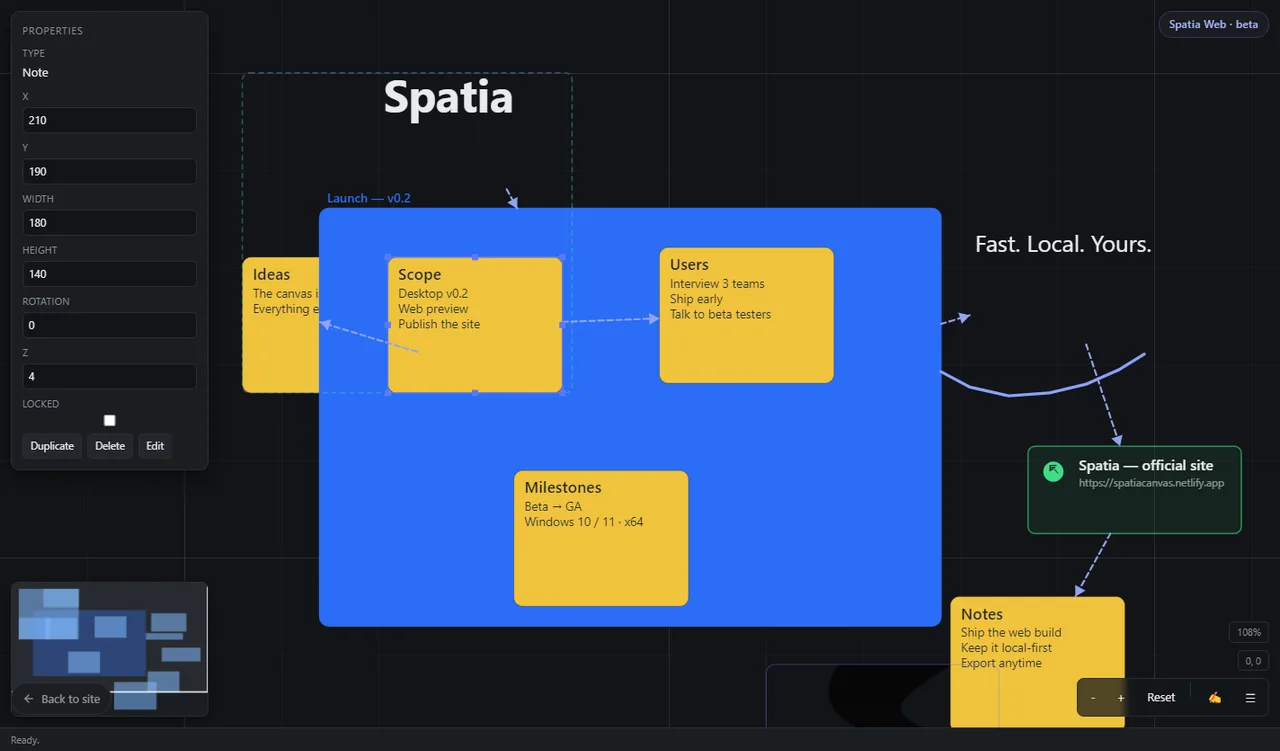
Notes
Notes are colorful sticky-style cards with a title and body. They are the fastest way
to capture an idea. When you add a note, its editor opens immediately so you can type
right away.
Edit: double-click a note to open its inline editor.
Color: notes come in a palette — pick one that fits (the inspector shows note properties when a note is selected).
Resize: drag the selection handles on the note's corners or edges.
Text
Text objects are lighter than notes — great for headings, labels and titles. Select a
text object to adjust size, bold, italic and alignment from the inspector. Double-click
to edit the text itself.
Tip: move, resize, rotate and connect notes and text exactly like any other object.
Connections
Connections draw lines (optionally with arrowheads) between objects. Because they
reference the objects they join, they follow automatically when you move
or resize either end — no manual redrawing.
Creating a connection
Drag: hold Ctrl and drag from an object to a target, then release. Release on empty space to leave a free endpoint.
Selected pair: select exactly two objects and press Ctrl+Shift+C (or use Connect selection in the right-click menu).
Mobile: use the Connect tool — tap a source object, then tap the target (or drag from source to target).
Managing connections
Select a connection to change its color or toggle its arrowhead in the inspector.
Delete a connection with Delete — the objects it connected stay put.
Connections always attach to the facing edge of an object and travel with it.
Frames
Frames are named, colored containers that give your workspace structure — like zones on
a giant whiteboard. Use them for projects, phases, departments, or any grouping of ideas.
Add a frame: right-click the canvas and choose Add frame (or use the Add sheet on mobile and pick Frame).
Name and color: select a frame and edit its name and color in the inspector.
Isolate: select a frame and press Shift+I to isolate its content and focus on just that area; press Escape to exit.
Size it: drag the frame's handles to fit the content inside.
Frames are visual containers, not pages — nothing is clipped, and objects can overlap
them freely.
Images, files & links
Images
Add: use Image in the Add section, drag an image file from your computer onto the canvas, or paste an image from the clipboard.
Images become objects you can move, resize and rotate like anything else.
When an image is imported, Spatia captures a small thumbnail automatically, so galleries load instantly without decoding the full file.
Files
Add: use File in the Add section, or drop any file onto the canvas.
Files are stored with the project (desktop) or in the browser (Web app) and can be opened later — right-click a file object and choose Open file.
If a file goes missing (for example after moving a project folder), right-click and choose Relink file… to point Spatia at the new location.
The Assets panel
Open it: use Assets in the Media sidebar section (or the mobile menu). It lists every image, video, audio, PDF and file imported into the project.
Thumbnail chips: each asset shows a thumbnail for images, a file icon otherwise, plus its name, size and how many objects use it.
Find on canvas: click a chip to jump to and select the first object that uses that asset.
Open / Relink / Remove: each chip offers these actions. Relink swaps in a replacement file; Remove deletes the stored file permanently (objects still using it then show a missing-file notice so you can relink).
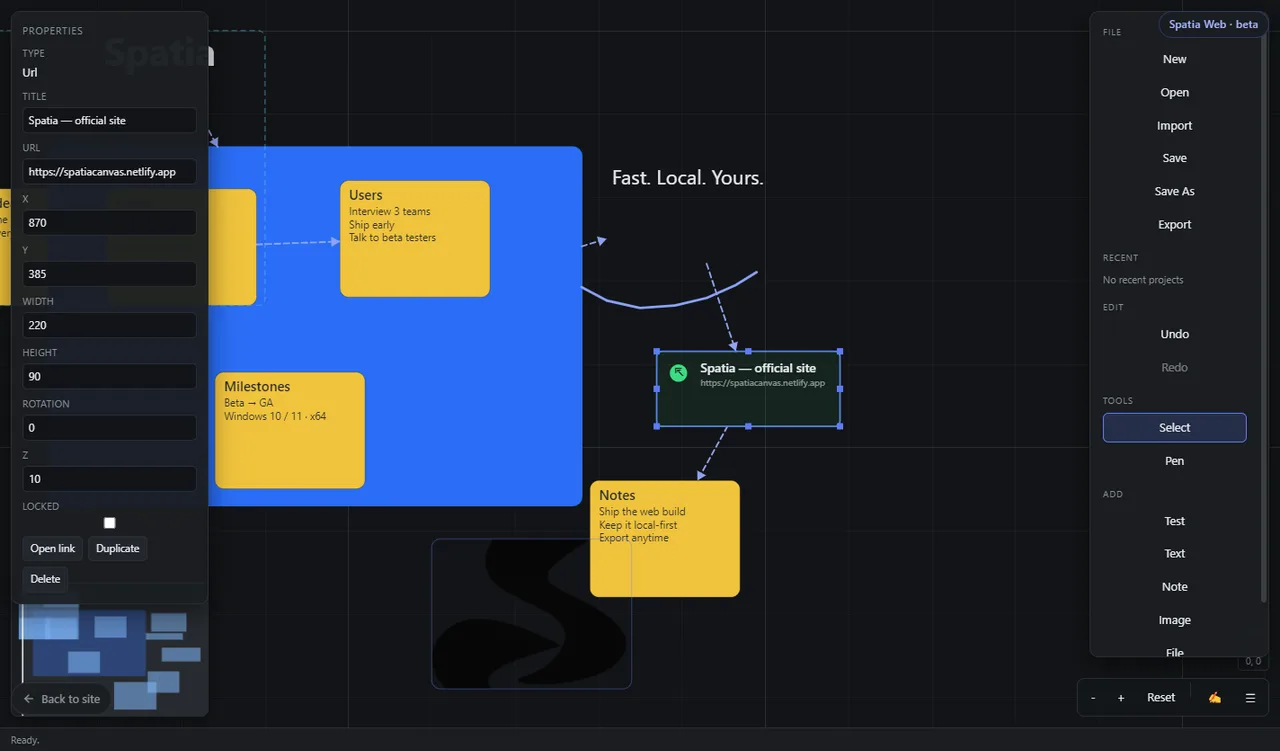
Links (URLs)
Add: use Link in the Add section and enter the address, or drop a link from your browser onto the canvas.
Link cards show a title (editable) and open the page when you choose Open link.
Drawing & shapes
Shapes
The Shapes section adds ready-made diagram primitives: rectangle,
rounded rectangle, ellipse, diamond,
triangle, line and arrow. Everything
you do with other objects works here too — move, resize, rotate, snap and connect.
Style: select a shape and use the inspector to change its fill color, stroke color and stroke width.
Lines and arrows are drawn horizontally from the box's left center to its right center; resize to change their length and direction.
The Pen tool
The Pen tool (in the Tools section or the HUD) lets you draw freehand
strokes directly on the canvas — underline, circle, scribble, annotate. Pen strokes are
decorative: they render with your drawings but aren't selectable objects.
Combine shapes, freehand strokes and connections to sketch flow charts, wireframes,
diagrams and more.
Selection & editing
Select tool (default) drives almost everything:
Select: click an object. Shift+click (or Ctrl+click) toggles an object on/off the selection.
Marquee: drag on empty canvas to select everything inside the rectangle.
Move: drag any selected object (or the marquee selection) to move everything.
Resize: drag the handles on the selection box's corners and edges.
Rotate: use the rotation handle above the selection.
Multiple: select two or more objects to move them together, group them, or connect them.
Editing actions
Action
How
Duplicate
Ctrl+D or right-click → Duplicate
Delete
Delete/Backspace or right-click → Delete
Copy / paste
Ctrl+C / Ctrl+V
Select all
Ctrl+A
Group
Select ≥ 2 objects and press Ctrl+G
Ungroup
Select a group and press Ctrl+Shift+G
Bring to front / send to back
] and [, or the right-click menu
Focus selection
F — zoom to the selection
Isolate container
Shift+I on a frame or group; Escape to exit
Right-click menu
Open/edit, duplicate, delete, connect, group, layer and add actions
Zoom, pan & navigation
Zoom
Mouse wheel zooms in and out centered on the cursor.
The HUD (+ / – / Reset) in the bottom center zooms around the view center.
Focus (F) jumps to your selection; Fit all (mobile) fits everything on screen.
Pan
Middle mouse button drag pans from anywhere.
Hold Space and left-drag to pan.
The minimap (bottom-left) shows an overview — click or drag it to jump around the workspace.
Finding your way around
Zoom out for the big picture, zoom in to a note for detail — the canvas never ends.
Use frames as landmarks and groups to keep related objects together.
Isolation (Shift+I) hides everything outside the selected frame or group so you can focus.
Keyboard shortcuts
Shortcut
Action
Ctrl+Z
Undo
Ctrl+Shift+Z / Ctrl+Y
Redo
Ctrl+C / Ctrl+V
Copy / paste objects
Ctrl+D
Duplicate selection
Ctrl+A
Select all objects
Delete / Backspace
Delete selection
Ctrl+G / Ctrl+Shift+G
Group / ungroup
Ctrl+Shift+C
Connect the two selected objects
] / [
Bring to front / send to back
F
Focus (zoom to) selection
Shift+I
Isolate container / exit isolation
Escape
Clear selection, close pop-ups, exit isolation
Space + drag
Pan the canvas
Ctrl + drag from an object
Start a connection
Shortcuts work in the desktop app and the Web app. While you're typing in a text editor,
keys go to the text, not the canvas.
Mobile & gestures
Spatia's Web app is touch-optimized and installable from your phone or tablet browser.
Install it (your browser's "Add to Home screen" / "Install app" option) for an
app-like, offline experience.
Gestures
Pan & zoom: move or pinch with two fingers.
Select: tap an object to select it.
Resize: drag the selection handles (corners and edges) to resize.
Edit text: double-tap a note or text object.
Connect: use the Connect tool — tap a source object, then tap the target (or hold and drag from source to target).
More actions: the bottom Menu holds edit, duplicate, delete, connect, group, layer and view actions for the current selection.
Bottom bar
The bottom navigation gives you Select, Pen,
Add (text, note, link, image, file, frame and all shapes),
Connect and a Menu with File (New, Open, Import, Save,
Save As, Export, Templates), Plugins, View (zoom, fit, exit isolation) and Recent projects.
Search & organization
Your canvas is the search and organization surface — and it is built to stay
clear as it grows:
Zoom out to see everything at once, the way a map shows a whole city.
Frames divide the space into named regions (phases, topics, areas).
Groups keep related objects moving and layering together.
The minimap is your always-on overview: click anywhere to jump there.
Focus (F) snaps the view to whatever you're working on; isolation hides the rest.
Note: a full text-search box inside the canvas is planned for a future
version. Today, keeping things in named frames plus zoom-to-focus covers most canvases.
Plugins
Plugins are small add-ons that extend Spatia with extra commands from inside a secure,
sandboxed environment. A plugin declares its identity in a manifest and can
read from and write to your canvas through a small, audited API.
Installing a plugin
Open Plugins… from the File section (desktop, Web app and mobile all have it).
Install… picks a local plugin folder that contains a manifest.json and the plugin code (desktop).
Install URL installs from a hosted manifest.json address.
Plugins appear in the list with an enable/disable toggle, and can be removed.
Using a plugin
Enabled plugins add their commands to Spatia's menus. A small Example Plugin
is built in (an "Add example note" command and a live selection listener); the official
hosted Counter Plugin provides a "Count objects by type" command that
demonstrates the public Plugin API from a manifest.json URL — a plugin reads the
canvas, computes the result and shows it, all inside the
sandboxed plugin environment.
Commands run only when you invoke them, and the plugin only reaches the canvas through the
documented API.
The official hosted Browser Frame plugin adds an "Add Browser Frame"
command that places a real, interactive web page on the canvas — with an address bar, search,
back/forward/reload, move and resize. Only the current URL is stored on the object. On the
desktop app it uses a full Chromium frame so any site loads including video; on the web build
it falls back to an <iframe>, which many sites block by refusing to be
embedded — that limitation is shown honestly in the frame rather than faked.
API v2: permissions and events
A plugin declares the API it wants in its manifest via apiVersion: 2 and an
optional permissions list, e.g.
["notify", "commands", "view", "documents", "selection", "navigation"].
Every API method is gated by one of those permissions (view = reading objects,
the project and the viewport; documents = create/update/delete objects,
selection = reading and changing the selection,
navigation = zoom, undo/redo, focus; commands = registering menu
actions; notify = toasts). A permission a plugin did not ask for is refused at runtime.
Plugins built before API v2 (no apiVersion/permissions field) keep
full v1-compatible access, so nothing existing breaks.
Plugins can subscribe to app events with api.on("selection" | "document" | "viewport",
handler) — the handler is called with the current selection ids, the object count, or the
viewport position, and the manifest's permission list is what decides which API calls the
handler may perform.
Security: plugins run sandboxed with no direct access to your files,
and every API call is validated against the plugin's declared permissions. Install plugins only
from sources you trust.
Collaboration
Spatia is a local-first tool — your projects stay under your
control — and it also supports real-time collaboration for
nearby or online teammates.
Start the bundled collaboration server (npm run server, default
ws://localhost:8787), click Share… and connect.
The first person to join a room becomes its owner and can promote
others from viewer to editor inside the share dialog.
Everyone sees live cursors and each other's selections; the owner
and editors share the document and see each other's changes in real time.
Share the room ID (or an invite link) with teammates; they join the same room —
desktop and Web apps interoperate.
Rooms are stored on the server (one file per room under server-data/),
so a session survives server restarts and reconnects automatically.
Prefer to stay entirely local? Export the canvas as .spatia.json or a
.spatia folder and share it — recipients open or import it directly.
Version history & data safety
In version 0.4.9, version history means what a versioned, save-based workflow gives you:
Undo / Redo for everything you do in the current session.
Manual save to your chosen location (desktop files, or IndexedDB in the browser).
Portable copies: every .spatia.json or .spatia export is a snapshot you can store, rename or put in your own backup system.
Recent projects keep your last few canvases one tap away.
Tip: for sensitive work, export a .spatia folder after a big
session and let your OS backup handle version snapshots — it's a plain file you control.
Automatic multi-version history and crash-safe autosave are planned for future releases.
Frequently asked questions
Is Spatia really free and offline?
Yes. The desktop app works entirely offline, and the Web app keeps your work in your own
browser. There's no account and no cloud dependency.
What's the difference between the desktop app and the Web app?
The desktop app saves files directly on your machine and can store large images and
files with the project. The Web app is a lightweight version that runs in any modern
browser (and as an installable PWA), storing projects locally in the browser.
Where do my projects live?
Desktop: wherever you saved them (you choose with Save As). Web app: in your browser's
local storage (IndexedDB). Nothing is uploaded anywhere.
Can I open a Web-app project in the desktop app and back again?
Yes — save or export the project as .spatia.json in one place and open or
import it in the other. The project format is shared.
What can I put on a canvas?
Notes, text, images, files, links, frames, all the built-in shapes, freehand pen
strokes, groups and connections.
Can I undo a mistake?
Yes — Ctrl+Z undoes, Ctrl+Shift+Z (or Ctrl+Y) redoes.
Undo covers adds, moves, resizes, rotates, deletes, grouping and more.
Are there templates I can start from?
Yes — eight starters covering brainstorming, planning, study, notes and personal use.
See Templates.
Does Spatia support collaboration?
Yes, plus it stays local-first. Start the bundled server (npm run server,
default ws://localhost:8787), then click Share… to open a
room — the first joiner is the owner and can invite editors. Teammates see live cursors
and share changes in real time; rooms survive server restarts and reconnect automatically.
You can also share portable .spatia exports and edit them together as a
fully offline alternative.
Troubleshooting
The Web app won't boot
Try a hard refresh and use an up-to-date browser (Chrome, Edge, Firefox or Safari).
If a cached copy misbehaves after an update, reload once — the service worker refreshes its shell.
An image or file shows as missing / can't be opened
Right-click the object and choose Relink file… to point at the moved file.
Keep the .spatia folder together with its files so assets travel with the project.
I can't type on the canvas
Double-click a note or text object to open its inline editor.
Make sure a pop-up dialog (like the link box) isn't holding focus.
A plugin isn't working
Check it's enabled in Plugins…, then try disabling and re-enabling it.
Reinstall it from its manifest.json URL or folder to pick up a fix.
Only install plugins you trust.
Something else is wrong
If you hit a genuine bug, we want to know. Click Report a problem to open
the in-page reporting form, describe what happened, and send it — no email client needed.
Report a problem
Found a bug or something that isn't working the way it should? Let us know — we read
every report.
Clicking Report a problem opens a small form right on the page. Type what
happened and press Send report — the report goes in the background, and the
page stays where you are. You'll see a confirmation when it's sent, or an error you can retry.
The form is specifically for reporting problems and bugs, not general
support questions. It helps us if you include:
What you were doing when it happened
Whether you were in the desktop app or the Web app
Any error message you saw
The version, page and browser details are attached to the report automatically — you only
need to write the description.
A flexible space where ideas, objects, frames, text and connections exist together.
No rigid documents. No forced structure. Just a canvas that adapts to the way you think.
Your workspace — arrange ideas exactly where they belong.
Zoom without limits — move freely from a bird's-eye view down to a single note.
Spatia — Workspace
02 — Built for the way you think
Powerful doesn't have to mean complicated.
Your workspace
Arrange ideas exactly where they belong on an infinite canvas. Nothing is fixed until you decide.
Focus mode
Move freely through your workspace and concentrate on exactly what matters. Everything else gets out of the way.
Keyboard first
Powerful shortcuts keep your hands on the canvas instead of hunting through menus. Less clicking, more doing.
Visual thinking
Put ideas next to each other. Connect them. Move them. See relationships instead of reading lists.
Structure without limits
Frames and groups give your canvas structure while keeping everything flexible.
Local & private
Desktop files live on your machine. The web preview keeps your work safely in your own browser.
Spatia — Workspace
03 — The product
Made to disappear. So your ideas don't.
The interface stays quiet so the canvas can take over. Every interaction is designed
to feel immediate, predictable and natural — rendered at 60 fps with viewport culling,
even on large canvases.
Fast — a lean, dependency-free engine built around a single canvas.
Precise — edge-to-edge connections that follow your objects.
Spatia — Workspace
04 — Try it now
No install. Just a canvas.
Run Spatia straight in your browser. Create notes, frames and connections, pan and zoom,
and export your work as a .spatia.json file whenever you're ready.